
Statuses and schedules are inter-related (some in complex wasy) are used for searching, finding, and highlighting, things that are priority or overdue etc. and are used in the search in the inspector. The nature of various statuses are (to be) explained elsewhere.
Load up the ProjectDemo.xml graph.
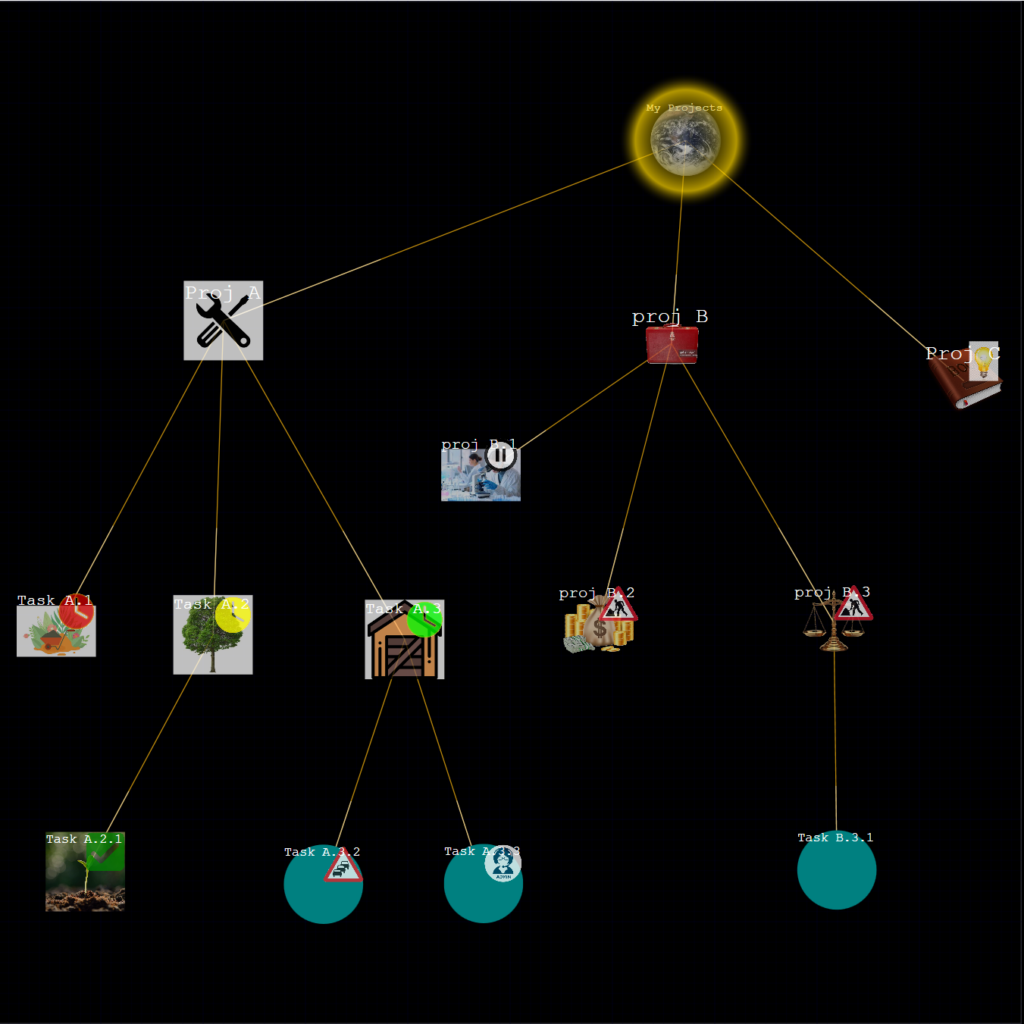
Topic’s (nodes) do have a status icon if relevant; but clicking on a search button will put a very visible status icon on top of the node (and dim the other graph components that are not found in that search). Try clicking something like:
Done
All items that are finished (complete, abandoned) with will be highlighted. Click search “None”.
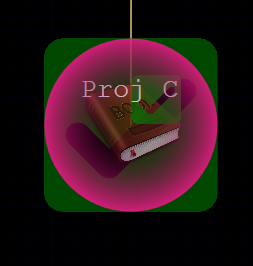
Try adding a node as a sub-node of Proj C. Use Add Edges (from tutorial 1) and be sure to chose Cancel when you are done to get rid of the blue “From Node” halo.

The new node copies the name and Topic Icon (change them if you want). Its default status is “Unset”; the date fields default to “select a date”. From search, click
Unset
This will highlight all the nodes that are unset, and may or may not, need setting, or setting to some other status (in the status inspector panel), or scheduling for action within a specific period or on a specific date. When scheduling, the expected and actual start and finish dates (abbr. DSX, DSA, DFX, DFA) for an item are set in the schedule inspector date fields.
Set the DSX (expected start) to today’s date and DFX to a few days hence.
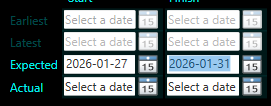
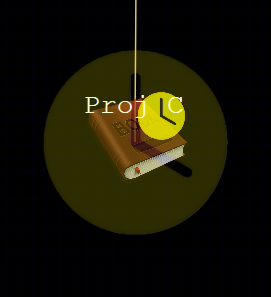
Click search Today. The node will be highlighted with a Yellow Clock.
Click WIP in the Schedule panel to set it that work has commenced on that item.
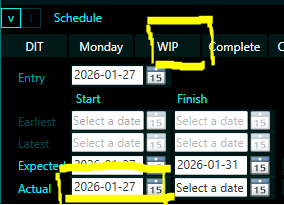
The DSA is filled in with today’s date and a Yellow Work Roadsign highlights the node.
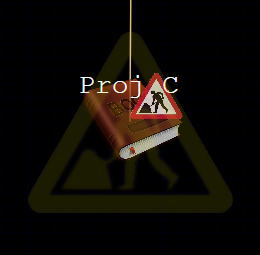
Click DIT to set it that you will Do It Tomorrow: ie that you have done for today on that task and will resume work the following day.
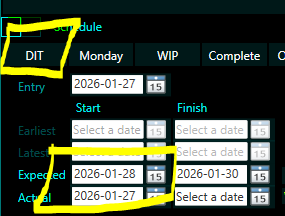
The DSX changes to tomorrows date and a Green Work Sign highlights the node.
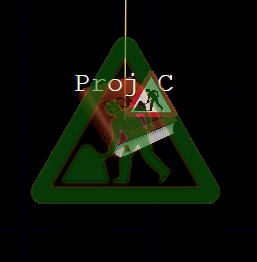
See what happens is you search Tomorrow: the work sign should be yellow work sign. Return to search Today.
Click Complete to set it that you have completed that task.
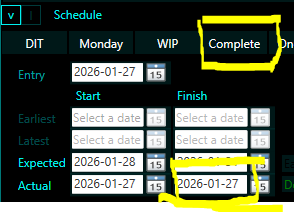
This fills in DFA date field with today’s date and Highlights with a Green Tick.
You can now set up the structure for you project, adding or deleting nodes and edges.